
Your Ultimate Guide to Blocking Digital Distractions During a Pomodoro Session

For the remote worker, every notification is a potential profit killer. A single Slack message or social media alert doesn't just steal a second—it can take up to 23 minutes and 15 seconds to fully regain your focus after a significant distraction. If you’re serious about building passive income, you must treat your Pomodoro timer as a non-negotiable force field.
At Pomodoro Desk, our goal is simple: maximize your 25 minutes of work. Here is your step-by-step guide to locking down your digital environment and achieving genuine deep work during every cycle.
📋 What You'll Master in This Guide
🚫 Why Distractions Kill Pomodoro Effectiveness
The Pomodoro Technique's power comes from uninterrupted focus blocks. Here's why even a "quick check" destroys your productivity:
⏱️ The 23-Minute Recovery Cost
University of California researcher Gloria Mark found that it takes an average of 23 minutes and 15 seconds to fully return to a task after an interruption. If you check your phone twice during a 25-minute Pomodoro, you've essentially worked ZERO minutes at peak capacity.
📉 Productivity Math: The Real Cost
Scenario 1 (No Distractions): 8 Pomodoros × 25 minutes = 200 minutes of deep work = ~3.3 hours of genuine productivity
Scenario 2 (2 distractions per session): 8 Pomodoros with constant context switching = ~45 minutes of actual deep work (the rest is recovery time)
The difference? 2.75 hours of lost productivity per day. Over a month, that's 55 hours—more than a full workweek erased by "harmless" notification checks. This is why external blocking tools aren't optional—they're essential.
1. The "Two-Phone Solution" (For the Dedicated Creator)
The Problem: You need your phone for work calls or two-factor authentication, but you get pulled into social media spirals.
The PomoDesk Solution: Dedicate your main phone as the Distraction Zone and keep it in a separate room or drawer for the duration of your focus session. Use a secondary, simple device (like an old tablet or browser tab) only for essential work alerts (like your Pomodoro Desk timer's completion ding).
Physical distance from your main device is the most effective boundary you can create. This allows you to stay in deep work without the temptation of the latest news feed or meditation app reminder.
2. Banish the "Work-Related" Distractions (Email and Slack)
The Problem: Your inbox is your job, so you feel guilty silencing it.
The PomoDesk Solution: Use the Batching Strategy. Schedule specific 25-minute Pomodoro cycles for communication only (e.g., 10:00 AM and 3:00 PM). During every other cycle, silence all email notifications and close the Slack application entirely.
This is crucial: when you are working on a creative or technical task, every remote employee must know that communication is not allowed to interrupt the current cycle. If a message is truly urgent, they can call—but almost nothing is that urgent.
3. Master the Silent Desktop Cleanup
The Problem: Visual desktop clutter leads to mental clutter, causing task switching (the death of focus).
The PomoDesk Solution: Before you press START on the Pomodoro Desk timer, spend 60 seconds implementing the Silent Desktop Cleanup:
- Close every browser tab that is not absolutely essential for the current task.
- Hide all desktop icons (most operating systems allow this with a single click).
- Set your computer to "Do Not Disturb" mode.
Starting your focus session in a clean, minimalist digital environment drastically reduces the temptation to click away, allowing you to sustain productivity throughout the cycle.
4. The "Block-List" Browser Extension
The Problem: You rely on willpower to resist checking distracting websites (news, video platforms, or forums).
The PomoDesk Solution: Leverage a free browser extension (like StayFocusd or Freedom) to create a block list. For your 25-minute Pomodoro timer cycles, block yourself entirely from these sites. When your break comes, the block is lifted automatically.
This external enforcement removes the need for willpower. It’s a simple, high-ROI tool that maximizes your deep work time and helps you enforce your remote work boundaries effortlessly.
⚙️ Platform-Specific Blocking Guides: Step-by-Step Setup
The strategies above work universally, but each operating system and device has specific tools that make blocking distractions even easier. Here's how to configure your exact setup:
🍎 macOS: Focus Modes + Notification Control
Step 1: Open System Settings → Focus. Click the "+" button and create a custom Focus called "Pomodoro Deep Work."
Step 2: Under "Allowed Notifications," select ZERO apps (or only your timer app). This blocks all notifications during Pomodoros.
Step 3: Under "Options," enable "Dim Lock Screen" and "Hide Notification Badges." This prevents visual distractions even when glancing at your desktop.
Pro Tip: Set Focus mode to activate automatically when opening specific apps (like your code editor or writing tool). It'll turn on the moment you start work.
🪟 Windows: Focus Assist Configuration
Step 1: Press Windows Key + A to open Action Center. Right-click "Focus Assist" and select "Priority only" or "Alarms only."
Step 2: Go to Settings → System → Focus Assist → Priority List. Remove ALL apps except essential work tools (or leave it completely empty).
Step 3: Under "Automatic Rules," create a rule for "During these times" and set it to your standard Pomodoro work hours (e.g., 9 AM - 5 PM).
Pro Tip: Enable "Show a summary of what I missed" so you can batch-check notifications during your 5-minute breaks without obsessing during work.
🌐 Browser Extensions: The Ultimate Blockers
For Chrome: Install StayFocusd (free). Set "Max Time Allowed" to 0 minutes for distracting sites (YouTube, Twitter, Reddit). Enable "Nuclear Option" for true 25-minute lockdowns.
For Firefox: Install LeechBlock NG (free, open-source). Create a block set for "Social/News" sites, set it to block during your work hours, and choose "Block + Redirect" to send you back to work.
For Safari: Use Screen Time (Settings → Screen Time → App Limits). Add distracting websites to "Always Blocked" during work hours. No extension needed—it's built-in.
📱 Phone Lockdown: iOS & Android
iOS Users: Settings → Focus → Create "Work Focus." Under "Allowed Apps," select ONLY phone, messages (for emergencies), and your timer. Under "Focus Filters," enable "Hide Notification Badges." Place phone face-down across the room.
Android Users: Digital Wellbeing → Focus Mode. Select ALL distracting apps (social media, games, news). Enable "Schedule" to auto-activate during work hours. Turn on "Wind Down" mode to grayscale your screen after 8 PM to discourage late-night scrolling.
📊 Common Distraction Types & Targeted Solutions
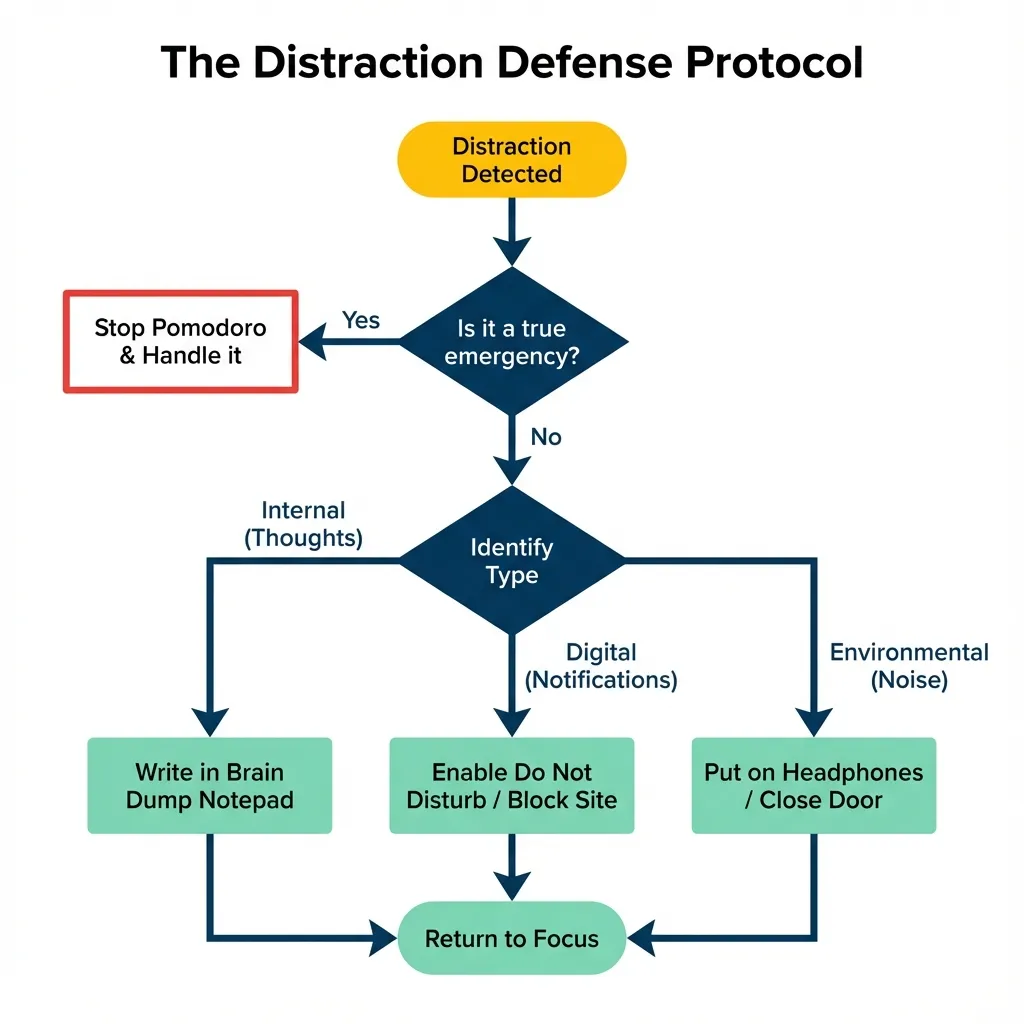
Not all distractions are created equal. Here's how to identify and eliminate the three main types that sabotage your Pomodoros:
🧠 Category 1: Internal Distractions
Problem: Mind wandering, task-switching impulses, perfectionism paralysis
Solution #1: Keep a physical notepad next to your keyboard. When a random thought appears ("I need to email John"), write it down immediately and return to work. Review the list during your break.
Solution #2: Create a "Later" list for task-switching urges. When you think "I should work on that other project," add it to the list. This satisfies your brain's need to "capture" the idea without destroying focus.
💻 Category 2: External Digital Distractions
Problem: Email pings, Slack messages, browser tabs calling your name
Solution #1: Set Slack status to "🍅 In Pomodoro - Available at [TIME]." This trains colleagues to batch their questions and respect your focus blocks.
Solution #2: Use OneTab (browser extension) to collapse all tabs into a single list. Open ONE tab per Pomodoro. This eliminates the visual temptation to click between tabs.
🏠 Category 3: Environmental Distractions
Problem: Household interruptions (family, pets), background noise, visual clutter
Solution #1: Create a physical signal that you're in deep work. Hang a sign on your door: "Pomodoro in Progress - Back at [TIME]." Wear noise-canceling headphones even if you're not playing music—they signal unavailability.
Solution #2: Use white noise or nature sounds (rain, waves) to mask household sounds. Apps like mynoise.net offer customizable soundscapes specifically designed for focus work.
❓ Frequently Asked Questions
Q: What if I need to stay available for true emergencies?
A: Allow phone calls only. Set your phone to "Do Not Disturb" with exceptions for specific contacts (family, direct manager). All text/app notifications stay blocked. True emergencies warrant a phone call—everything else can wait 25 minutes.
Q: How do I handle video calls during Pomodoros?
A: Treat the entire call as one Pomodoro. Set a 25-minute timer before the call starts. If the call runs long, pause your Pomodoro count for the day—video calls aren't deep work. Schedule focused work sessions before/after calls, never between them.
Q: Should I block work tools like email completely?
A: Yes, during creative/technical Pomodoros. No, during communication Pomodoros. Schedule 2-3 "Email Pomodoros" per day where email is the ONLY task. During all other sessions, email is blocked. This batching strategy is 10x more efficient than constant checking.
Q: What if my job requires constant Slack monitoring?
A: Push back diplomatically. Share research showing that deep work requires uninterrupted blocks. Propose a compromise: you'll check Slack every 90 minutes (after 3 Pomodoros + breaks) instead of constantly. Most "urgent" Slack messages aren't truly urgent—set clear expectations.
Q: How do I block distractions on company-locked devices?
A: If you can't install browser extensions, use website blockers at the router level (OpenDNS, NextDNS) or manually add distracting sites to your hosts file (blocks them system-wide). For notifications, most companies allow Focus Assist/Focus Mode even on locked laptops.
Q: What about analog distractions (coworkers, family)?
A: Pre-communicate your Pomodoro schedule. Tell your family: "I'm unavailable 9-10 AM, 2-3 PM." For coworkers, use Slack status messages and close your office door (or wear headphones in open offices). The key is consistency—train people that Pomodoro time = unavailable time.
Q: How long until blocking becomes automatic/habitual?
A: Most people report automatic blocking behavior after 2-3 weeks of daily practice (14-21 consecutive Pomodoro days). After this, your brain will automatically close tabs, silence notifications, and enter "focus mode" the moment the timer starts—no conscious effort required.
📚 Continue Your Productivity Journey
✅ Pomodoro for Beginners: Your 5-Step Checkllist
New to the technique? Learn the fundamentals and get your first distraction-free session started today.
🧠 The Psychology of the Pomodoro Timer
Understand the neuroscience behind why blocking distractions makes the technique so effective.
📧 Batching Email and Slack: Pomodoro Strategy
Master the art of communication batching to eliminate the biggest productivity killer for remote workers.
🔬 The Science Behind Context Switching: Why Your Brain Can't Multitask
Understanding WHY distractions are so destructive makes you more committed to blocking them. Here's what neuroscience reveals about your brain's limitations:
Attention Residue: The Hidden Cost
Research by Sophie Leroy (University of Washington) discovered "attention residue"—when you switch tasks, part of your attention stays stuck on the previous task. If you check Slack mid-Pomodoro, your brain doesn't fully return to your work for 10-15 minutes, even after you close Slack.
The Implication: Every notification check doesn't just cost you the 30 seconds it takes to read—it costs you 15 minutes of degraded focus. This is why external blocking (browser extensions, Focus Mode) is non-negotiable: willpower can't overcome attention residue.
The Prefrontal Cortex Bottleneck
Your prefrontal cortex—the brain region responsible for focus, planning, and decision-making—can only process ONE complex task at a time. When you try to "multitask" (check email while coding), your brain rapidly switches between tasks, burning glucose and creating fatigue.
The Result: After 90 minutes of context-switching, your brain's glucose levels drop significantly. You experience mental fog, reduced decision quality, and increased errors. The Pomodoro Technique with strict distraction blocking prevents this glucose depletion, maintaining peak performance all day.
Dopamine Hijacking by Notifications
Every notification triggers a small dopamine release—your brain's reward chemical. Social media companies and app developers engineer notifications specifically to exploit this dopamine loop, creating compulsive checking behavior.
The Trap: Your brain begins to crave these micro-doses of dopamine, making "just one quick check" nearly irresistible. Willpower alone can't override this neurochemical compulsion.
The Solution: External blocking tools. When the notification never arrives (because you've disabled them), the dopamine loop is broken. After 2-3 weeks of consistent blocking, your brain rewires to find dopamine in task completion instead of notification checking.
💡 Bottom Line: Your brain isn't weak—it's being exploited by notification systems designed by teams of neuroscientists and behavioral psychologists. Blocking distractions isn't about discipline; it's about creating an environment where your brain's natural focus abilities can function without interference.
⚡ Your 5-Minute Quick Start: Block Distractions NOW
Information without action is worthless. Before you start your next Pomodoro, complete this 5-minute setup checklist:
✅ Minute 1: Phone Lockdown
Enable Do Not Disturb mode. Place phone in another room or drawer. If that's impossible,
flip it
face-down and turn off vibration. Your phone should be invisible AND inaudible.
✅ Minute 2: Desktop Cleanup
Close every browser tab except the ONE you need for this task. Hide desktop icons
(right-click
desktop → Hide Icons). Enable your OS's Focus/Do Not Disturb mode.
✅ Minute 3: Communication Batching
Close Slack/Teams entirely. Set email client to offline mode or close the app. Schedule your
next communication window (e.g., "I'll check messages at 11 AM"). Write it on a sticky note
as a
reminder.
✅ Minute 4: Install Browser Blocker
Install StayFocusd (Chrome) or LeechBlock (Firefox). Add your top 5 time-waster sites
(social
media, news, YouTube). Set block duration to 25 minutes. This takes 60 seconds—do it now.
✅ Minute 5: Test Run
Open the Pomodoro Desk timer, set it for 25 minutes, and START. Try to access a blocked
site—you
should be blocked. Check your phone—it should be silent. If both work, you're ready for
distraction-free deep work.
Final Takeaway: Enforce the Boundary
Your Pomodoro Desk timer is your anchor. Every remote professional must learn that the ding of the timer is the only acceptable interruption during a focus session. Master these simple steps, and you will dramatically reduce burnout and accelerate your path to passive income.